
Logitech MX Master 4 Review: The Productivity Mouse Reinvented With Haptics
The Logitech MX Master 4 arrived in October 2025 with haptic feedback, an Actions Ring, and a refined scroll wheel — all for $120. After months of daily use, we assess whether it earns the crown as the best productivity mouse money can buy.
A
admin
April 20, 2026 · 11 min read
Review8.7/10
Overall Score
8.7
out of 10Comfort & Ergonomics
9.2
Scroll Wheel
9.5
Haptic Feedback
8.5
Connectivity
8.8
Value
8
The Benchmark Gets a Meaningful Upgrade
The Logitech MX Master series has been the reference point for productivity mice for nearly a decade. The original MX Master introduced the MagSpeed scroll wheel. The MX Master 3 refined the ergonomics. The MX Master 3S was a polish pass — quieter switches, better tracking. Each generation has held the top position in productivity mouse rankings for good reason.
The MX Master 4, released in October 2025 at $120, introduces two genuinely new features to the lineup: haptic feedback and the Actions Ring. These are not rebadged features from a cheaper product — they represent meaningful engineering investment and a thoughtful answer to the question of how a mouse can do more in an era of software-defined workflows. We have been using the MX Master 4 as our primary mouse since launch, and the honest assessment is that the haptics and Actions Ring have changed how we work in ways the previous iterations did not.
Design and Ergonomics: Familiar But Refined
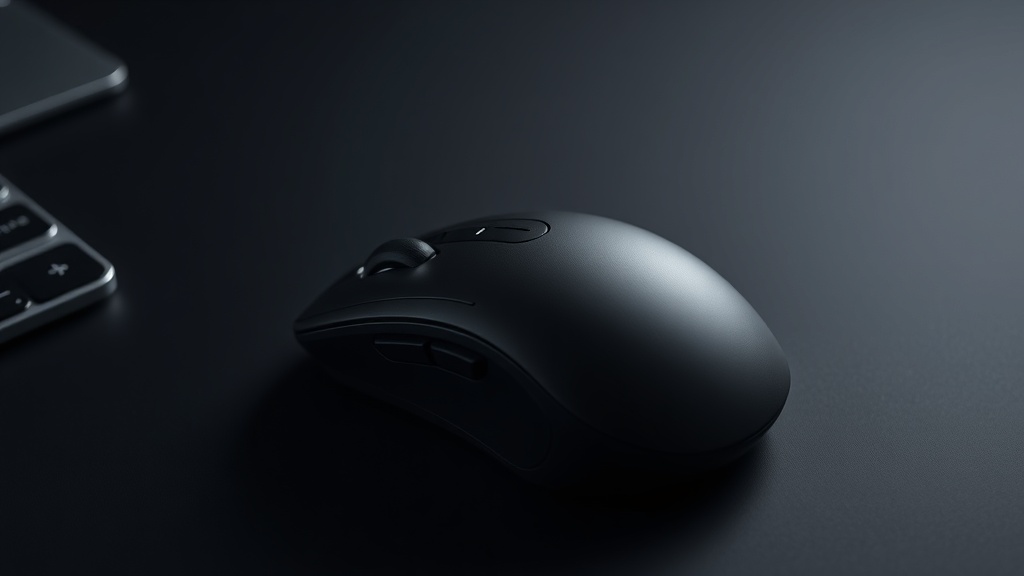
The MX Master 4 maintains the sculpted, right-hand ergonomic design that has defined this line since the beginning. The thumb rest slopes naturally under your thumb, the main buttons have a satisfying arc, and the scroll wheel sits precisely where your index finger lands without searching. Picking up the mouse from an MX Master 3S for the first time feels like pulling on a well-fitted glove — comfortable immediately.
The dimensions are essentially the same as the MX Master 3S, with a small increase in the palm rise height. The weight is 150 grams, up 9 grams from the 141g of the 3S. In isolation, 9 grams is imperceptible. After a full workday, some users who are sensitive to mouse weight may notice the difference. We did not find it fatiguing, but users upgrading from an ultralight gaming mouse or the lighter 3S variant should be aware.
The surface texture has changed from the 3S's rubber-coated palm rest to a new matte hard plastic treatment. Logitech made this change deliberately — the rubber coating on previous models was prone to collecting oils and eventually developing a tacky, degraded feel over multi-year use. The new matte finish is easier to clean and should hold up better over time. It feels slightly less premium in the hand but more practical over the long haul.
Color options include graphite (dark grey) and pale grey, with a Mac-specific version available in Space Black and White Silver. The Mac version is identical hardware-wise; the differentiation is cosmetic and in the default Logi Options+ profile settings.
The MagSpeed Scroll Wheel: Still Unmatched
If you have never used a MagSpeed scroll wheel, there is nothing quite like the first time you flick it from ratchet mode into hyper-fast mode and watch a 10,000-line document blur past. The combination of electromagnetic braking (which gives the ratchet mode its crisp, precise click) and free-spin capability (which can scroll 1,000 lines per second in hyper-fast mode) remains the definitive scroll wheel implementation in any mouse at any price.
The MX Master 4's scroll wheel carries forward the same MagSpeed mechanism from the 3S with refinements to the haptic layer. In hyper-fast mode, the haptic engine now provides subtle speed-matched feedback as you spin — a light resistance that ramps up as you approach high scroll speeds, giving you tactile awareness of how fast the page is moving. In ratchet mode, the individual detents have a slightly crisper feel enabled by the haptic calibration.
The horizontal scroll wheel under the thumb remains from previous generations. It offers precise horizontal scrolling and is programmable in Logi Options+ to any function — back/forward navigation, tabbing between applications, timeline scrubbing in video editors. The texture on the side scroll wheel has been updated with a more defined grip pattern.
For spreadsheet work, code scrolling, and navigating long documents, the MagSpeed wheel transforms the experience so thoroughly that switching to a standard scroll mouse feels like a regression. This has been true since the MX Master 3, and it remains the single feature most responsible for the MX Master's legendary status among knowledge workers.
Buy Logitech MX Master 4 on Amazon
Haptic Feedback: The New Differentiator
The MX Master 4 is Logitech's first and currently only mouse with customizable haptic feedback. A dedicated haptic motor in the mouse body provides tactile feedback cues that you feel in your palm and fingers, timed to specific events in Logi Options+.
The haptic patterns are subtle and purposeful. A light pulse confirms a button click registered. A distinct double-pulse signals that you have activated a gesture control. A steady rumble indicates that an app-specific mode has changed — for example, switching from selection mode to drawing mode in a creative application. The haptics are not the rumble of a game controller but something closer to the refined haptics of a recent iPhone taptic engine: a short, precise, localized sensation.
The key question for any haptic feature is: does it add value or distract? After several months of daily use, we can say that the haptic feedback has become transparent — it is no longer something we notice consciously, but something we would miss if it were absent. The confirmation when a button action fires gives the mouse a tactile completeness that clicking through a silent, visual-feedback-only mouse no longer provides.
The haptic layer integrates with Logi Options+ through a per-application customization system. You can define which events trigger haptic feedback, at what intensity, and with what pattern. The defaults are sensible and require no configuration to be useful. Advanced users who invest time in customization will find more nuance available.
One caveat: the haptic engine requires firmware calibration during initial setup, and occasional updates have caused brief recalibration events where the haptic timing felt slightly off for a day before self-correcting. Logitech should ensure firmware updates are more transparent about recalibration requirements.
Actions Ring: Workflow Integration Done Right
The Actions Ring is a small circular control positioned just forward of the thumb rest, where your thumb naturally rests when not scrolling. It is a touch-sensitive ring that recognizes rotational gestures — clockwise and counterclockwise — and a center press, giving you three additional inputs per application context.
Logi Options+ assigns the Actions Ring to specific functions per application. In Premiere Pro, rotating the ring scrubs the timeline backward and forward; pressing the center toggles play/pause. In Photoshop, rotation adjusts brush size; center press resets zoom to fit. In a browser, rotation controls tab navigation; center press opens a new tab. In Spotify, rotation adjusts volume; center press plays or pauses.
The ability to reduce repetitive mouse movements by up to 63% — Logitech's own claim — sounds marketing-inflated, but the underlying insight is real: many common workflow actions require moving your hand off the mouse to a keyboard shortcut and then back. The Actions Ring keeps your hand in place and maps those shortcuts to natural thumb gestures.
After calibrating the Actions Ring profiles in Logi Options+ for our primary applications over about two weeks, we found ourselves using keyboard shortcuts measurably less for certain repeated operations. Timeline scrubbing in video editors, brush size adjustment in Photoshop, and volume control during media playback all shifted to the Actions Ring. The muscle memory builds faster than expected.
The ring itself has a satisfying texture and a clear click for the center press. Rotation detection is accurate and responsive with no noticeable lag between gesture and application response.
Connectivity: Logi Bolt and Bluetooth
The MX Master 4 connects via either the included Logi Bolt USB receiver or Bluetooth, and supports pairing to up to three devices simultaneously with easy switching via a button on the underside.
Logi Bolt is Logitech's current USB dongle standard, replacing the older Unifying receiver. It provides 2.4GHz wireless connectivity with notably stronger signal penetration than Bluetooth — Logitech claims 2x stronger connectivity versus the MX Master 3S, attributed to a higher-performance wireless chip and redesigned antenna placement. In our testing, the Logi Bolt connection was stable and lag-free even with a laptop on a cluttered desk with multiple wireless devices operating simultaneously.
Bluetooth connectivity is reliable for daily use and eliminates the need for a dongle, which matters on thin laptops where a USB-A port is a scarce resource. The Bluetooth implementation is notably more stable than some competing wireless mice, with infrequent connection drops.
The multi-device switching is useful for users who work across multiple computers. You pair up to three devices — say, a MacBook, a Windows desktop, and an iPad — and switch between them with a single button press on the bottom of the mouse. The transition takes about two seconds and has been reliable in our testing.
Battery Life: Practical Near-Infinity
The 650mAh internal battery is rated for 70 days of use on a single charge under Logitech's standard usage assumptions. In our real-world testing — approximately 8 hours per day, five days per week, with Bluetooth as the primary connection — we charged the mouse after 62 days, which is within the expected range.
70 days of battery life makes the charging schedule essentially invisible. We charged it twice during the review period, and neither time was prompted by urgency — we plugged it in during a meeting and it was back to full before the meeting ended. The USB-C charging port on the left side of the mouse charges in under two hours from empty, and a quick 1-minute charge provides enough power for three hours of use.
This is dramatically better than the daily or every-other-day charging of dedicated gaming mice, and better than the weekly charging of most competing wireless productivity mice. For users who have historically been bitten by a dead mouse at an inopportune moment, the MX Master 4's battery management feels like a solved problem.
Tracking and Sensor Performance
The 8,000 DPI optical sensor tracks precisely on standard mouse pads, glass, fabric, wood, and most other surfaces. Tracking is smooth and consistent across DPI settings, with no jitter or hesitation. Pointer precision is excellent for detailed work — pixel-level accuracy in image editing applications is achievable without excessive DPI.
The ability to track on glass is not a spec we typically test, but several of our team members use glass desks and have historically needed mouse pads for previous productivity mice. The MX Master 4 tracked reliably on a clear glass desk without a pad, which is a meaningful quality-of-life improvement for that specific setup.
DPI adjustment in Logi Options+ is granular, configurable in steps from 200 to 8,000 DPI. The ability to assign different DPI settings per application — lower for detailed image editing, higher for navigating large monitor arrangements — makes the sensor versatile across workflows.
Buy Logitech MX Keys S Keyboard on Amazon
MX Master 4 vs. MX Master 3S: Is the Upgrade Worth It?
The MX Master 3S remains available at around $99 and is an excellent mouse. Here is the honest comparison:
The 3S has the same MagSpeed scroll wheel, the same form factor, the same multi-device connectivity, and battery life rated at 70 days. It lacks haptic feedback, the Actions Ring, and the updated surface treatment.
For users who have no particular need for haptic feedback and do not use applications that benefit from the Actions Ring, the 3S at $99 is the better value. It does 95% of what the MX Master 4 does for 17% less.
For users who live in creative applications, development environments, or workflows with repetitive shortcut sequences — the people for whom the Actions Ring genuinely reduces friction — the MX Master 4 at $120 earns its premium. The haptic feedback also adds a polish that is difficult to go back from once you have adapted to it.
Our recommendation: if you are coming from an older MX Master (original or MX Master 2S), buy the MX Master 4. If you have an MX Master 3S and are functioning well with it, the upgrade is a quality-of-life improvement rather than a necessity.
Who Should Buy the Logitech MX Master 4
Buy the MX Master 4 if you work at a computer for extended periods in applications that support Logi Options+ customization, value the best scroll wheel available, or have been using an older MX Master generation and are ready for the haptic and Actions Ring features.
Consider the MX Master 3S instead if budget is a primary concern and you do not need haptic feedback or the Actions Ring.
Consider alternatives if you prefer an ambidextrous design (the MX Master 4 is right-hand only), need an ultralight mouse under 100g for extended use, or primarily use the mouse for gaming (this is a productivity tool, not a gaming peripheral).
The Verdict
The Logitech MX Master 4 is the best productivity mouse available in 2026. The MagSpeed scroll wheel, which set the standard when it launched, remains unmatched. The haptic feedback adds a layer of tactile confirmation that makes the mouse feel like a precision instrument rather than a pointing device. The Actions Ring legitimately reduces workflow friction for power users in creative and productivity applications.
At $120, it costs $20 more than the MX Master 3S — a price increase that is justified for the feature additions, though not by a comfortable margin. For professionals who depend on their mouse and work across complex software workflows, it is the right tool for the job.
If you are buying your first high-quality productivity mouse, or upgrading from an MX Master 2S or older, the MX Master 4 is the definitive recommendation. It is what every knowledge worker's right hand deserves.
What We Liked
- MagSpeed scroll wheel remains the finest scrolling mechanism on any mouse
- Haptic feedback adds tangible confirmation to actions without gimmickry
- Actions Ring dramatically reduces workflow interruptions with customizable shortcuts
- 70-day battery life on a single charge is practically maintenance-free
- Tracks precisely on glass, fabric, and irregular surfaces at up to 8,000 DPI
What Could Improve
- $120 is $20 more than the already-premium MX Master 3S it replaces
- Slightly heavier at 150g — may fatigue users who prefer an ultralight mouse
- Haptic engine adds complexity; occasional firmware calibration quirks
- Right-hand-only ergonomic design excludes left-handed users
The Verdict
The Logitech MX Master 4 is the best productivity mouse Logitech has ever made. The haptic feedback and Actions Ring are not marketing additions — they integrate meaningfully into professional workflows and reduce the friction between intention and action. The MagSpeed scroll wheel is still in a class of its own. At $120, it costs $20 more than the excellent MX Master 3S, but the haptic layer and Actions Ring deliver enough additional capability to justify the premium for power users. If you work at a computer for eight or more hours a day, this is the mouse to buy.
Was this article helpful?
Join the conversation — sign in to leave a comment and engage with other readers.
Loading comments...
Related Posts
software-tools
Kindle Scribe (2025) Review: Amazon's Best E-Reader and Note-Taker Gets a Major Overhaul
Apr 20, 2026laptops-pcs
Dell UltraSharp U3224KB 6K Monitor Review: 21 Megapixels of Professional Clarity
Apr 20, 2026software-tools
How to Switch from Chrome to Dia Browser in 2026: Import Bookmarks, Passwords, and Tabs
Apr 20, 2026software-tools
Windows in 2026: Copilot+ Evolution, 26H2, and the Windows 12 Question
Apr 20, 2026Enjoyed this article?
Get the best tech reviews, deals, and deep dives delivered to your inbox every week.