
How to Set Up a Matter Smart Home in 2026: Complete Beginner's Guide
A practical, step-by-step guide to building a Matter-based smart home in 2026. Learn how to choose a hub, pick compatible devices, pair everything, create automations, and troubleshoot common issues.
A
admin
April 4, 2026 · 11 min read
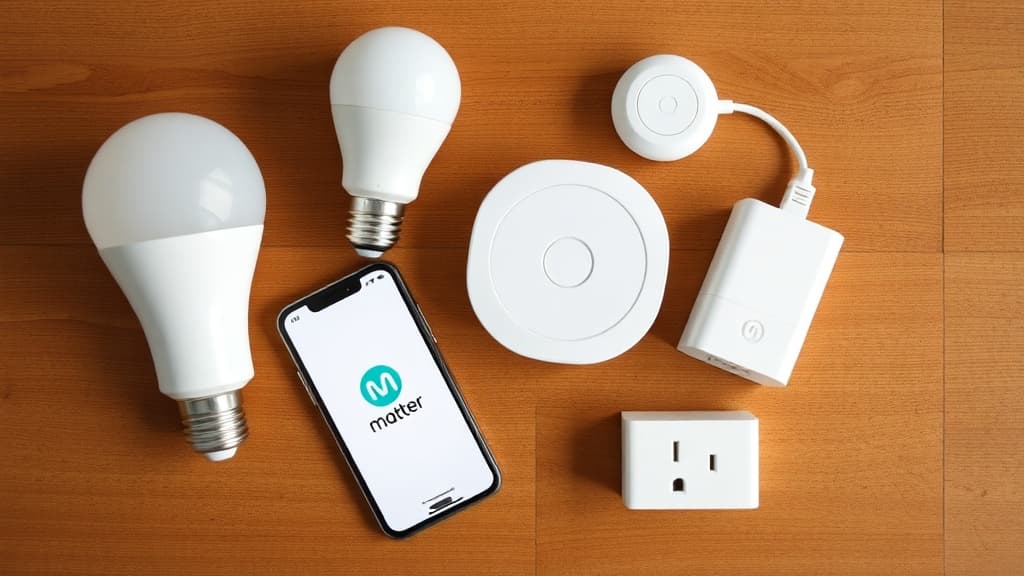
How-To Guide
Why Matter Finally Delivers on the Smart Home Promise
For years, the smart home was a fragmented mess. You had Zigbee bulbs that only talked to one hub, Wi-Fi plugs that needed their own app, and Bluetooth sensors that refused to cooperate with anything outside their ecosystem. If you wanted a light switch to work with both Alexa and HomeKit, you had to check compatibility matrices that looked like airline route maps.
Matter changed that. Developed by the Connectivity Standards Alliance with backing from Apple, Google, Amazon, and Samsung, Matter is an open, royalty-free connectivity standard that lets devices from different manufacturers work together natively. A Matter-certified smart plug from Brand A pairs with your Google Home, your Apple Home, and your Amazon Echo without needing three separate apps or cloud accounts.
In 2026, Matter has reached a level of maturity that makes it genuinely practical for everyday people. Version 1.4 added energy management devices and enhanced multi-admin capabilities, and version 1.5 is bringing video camera support. IKEA has launched more than twenty affordable Matter-over-Thread products, and virtually every major smart home brand now ships Matter compatibility as a baseline feature. The days of checking compatibility charts before every purchase are ending.
This guide walks through every step of building a Matter-based smart home from scratch, from choosing your first hub to creating multi-device automations that run entirely on your local network.
Understanding the Basics: What Matter Actually Does
The Protocol, Not the Product
Matter is not a device or an app. It is a communication protocol, a shared language that smart home devices use to talk to each other and to your controller. Think of it like USB-C for smart home gear. Just as USB-C standardized the physical connector so you could plug any compatible device into any compatible port, Matter standardizes the digital handshake so any certified device can join any certified ecosystem.
When you see the Matter logo on a product box, three curved arrows pointing inward toward a center point, that device has been certified to communicate using the Matter protocol. It will work with any Matter-compatible controller, regardless of which company made either the device or the controller.
How Matter Connects: Wi-Fi, Thread, and Ethernet
Matter supports three transport layers, which are the physical radio technologies that carry the Matter protocol's messages.
Wi-Fi is the most familiar. Many Matter devices, especially cameras, smart displays, and high-bandwidth products, connect over your existing Wi-Fi network. They communicate directly with your router and your Matter controller without additional hardware.
Thread is a low-power mesh networking protocol designed specifically for small, battery-powered devices like sensors, locks, and buttons. Thread devices form a mesh network where each device can relay signals for other devices, extending range and improving reliability. Thread requires a border router, a device that bridges your Thread mesh with your Wi-Fi network. Many modern hubs include a Thread border router.
Ethernet applies mainly to hubs and controllers themselves. Some devices use a wired Ethernet connection for maximum reliability.
Local Control: Why It Matters
One of Matter's most significant design principles is local control. When you press a button on your phone to turn off a Matter light, that command travels from your phone to your hub to the light, all within your home network. It does not route through a cloud server in another state. This means commands execute faster, typically under half a second, and your devices continue to work even if your internet connection drops.
Cloud connectivity still exists for remote access. When you are away from home and want to check your thermostat, that request does go through the manufacturer's cloud. But routine local operations stay local, which is a meaningful improvement in both speed and privacy.
Step 1: Choose Your Matter Controller (Hub)
Your Matter controller is the brain of your smart home. It processes automations, manages device connections, and provides the app interface you will use daily. Choosing the right one depends on which voice assistant ecosystem you prefer and what other devices you already own.
Apple Home (HomePod or Apple TV)
If you are already in the Apple ecosystem, a HomePod mini at ninety-nine dollars or a HomePod second generation at two hundred ninety-nine dollars serves as your Matter controller and Thread border router simultaneously. Apple Home's interface is clean and privacy-focused, and Siri handles voice commands. The HomePod mini is the most affordable way to get started if you own an iPhone.
The Apple TV 4K also functions as a Matter controller and Thread border router, so if you already have one, you may not need to buy additional hardware.
Google Home (Nest Hub or Nest Wi-Fi Pro)
Google's Nest Hub second generation and Nest Hub Max work as Matter controllers with Thread border router capabilities. The Nest Wi-Fi Pro combines a mesh Wi-Fi router with a Thread border router, which eliminates the need for a separate hub device if you are also looking to upgrade your network. Google Home's app has improved significantly in recent updates and handles complex automations well.
Amazon Alexa (Echo 4th Generation)
The Amazon Echo fourth generation at ninety-nine dollars includes a Zigbee hub, Thread border router, and Matter controller in one device. If you already use Alexa for voice commands and have other Echo devices around your home, this is the most natural choice. Alexa's routine system remains one of the most flexible automation engines available.
Samsung SmartThings
The SmartThings Station and SmartThings Hub v3 both support Matter and Thread. SmartThings is a strong choice if you want a platform that also supports legacy Zigbee and Z-Wave devices, letting you mix older smart home gear with new Matter products.
Home Assistant (Advanced Users)
Home Assistant is an open-source platform that runs on a Raspberry Pi, a dedicated mini PC, or Home Assistant's own hardware. It supports Matter through an add-on and offers the most customization and control of any platform. If you want to build complex automations with conditional logic, Home Assistant is unmatched. However, it requires more technical comfort than the consumer options above.
Universal Hub: Homey Pro
The Homey Pro 2026 edition supports Z-Wave, Zigbee, Wi-Fi, Bluetooth, infrared, Matter, and Thread. It manages over fifty thousand devices from more than a thousand brands, making it the most protocol-versatile hub available. At around three hundred fifty dollars, it is a premium option, but it eliminates the need for multiple hubs if you have a mixed-protocol household.
Step 2: Pick Your First Matter Devices
Starting with a few essential devices is smarter than trying to automate your entire home at once. Begin with products that provide immediate daily convenience so you can learn the system before expanding.
Smart Lights (Start Here)
Lighting is the easiest and most satisfying entry point. A Matter-compatible smart bulb installs in minutes, and the instant gratification of controlling lights by voice or app is what hooks most people on smart home technology.
IKEA's DIRIGERA hub and Tradfri bulb line now fully support Matter-over-Thread, offering the best price-to-performance ratio in the market. A starter kit with a hub and two bulbs runs about sixty dollars. Philips Hue also supports Matter, though at a higher price point, and offers the widest range of fixture styles and color options.
Buy Philips Hue Starter Kit on Amazon
Smart Plugs
A Matter smart plug turns any dumb appliance into a smart one. Plug in a fan, a space heater, a coffee maker, or a lamp and control it from your phone or by voice. Eve Energy and TP-Link Tapo both offer reliable Matter-compatible smart plugs in the twenty to thirty dollar range.
Buy Eve Energy Smart Plug on Amazon
Temperature and Humidity Sensors
Thread-based sensors from Eve and Aqara provide temperature and humidity readings throughout your home. These sensors are small, battery-powered, and connect through your Thread mesh network. They become powerful when combined with automations, for example, turning on a fan when a room exceeds seventy-five degrees.
Smart Locks
Smart locks are a practical upgrade that most households benefit from immediately. Yale, Schlage, and Aqara offer Matter-compatible locks that let you unlock your door with your phone, set temporary codes for guests, and receive notifications when someone enters. Expect to pay between one hundred fifty and two hundred fifty dollars for a quality Matter lock.
Buy Aqara Smart Lock on Amazon
Suggested Starter Kit and Budgets
Budget Starter (around $150): One smart hub you already own (Echo, HomePod mini, or Nest Hub), two IKEA smart bulbs ($25), two smart plugs ($40), and one motion sensor ($30).
Mid-Range Setup (around $400): Dedicated hub ($100), four smart bulbs ($60), smart lock ($180), two smart plugs ($40), and temperature sensor ($25).
Full Home (around $800): Hub ($100), eight to ten smart bulbs ($120), smart lock ($200), four smart plugs ($80), smart thermostat ($130), two motion sensors ($50), two door/window sensors ($40), and smart blinds ($100).
Step 3: Pair Your First Device
Pairing a Matter device is designed to be straightforward, but knowing what to expect prevents frustration. Here is the process step by step.
Prepare the Device
Unbox your device and power it on. Most Matter devices ship in pairing mode automatically when first powered. If the device has been used before, perform a factory reset, usually by holding a button for ten to fifteen seconds until an LED blinks rapidly.
Locate the Setup Code
Every Matter device includes a setup code, either printed on the device itself, on a card in the box, or on a QR code sticker. This code is unique to your specific device and is required for pairing. Keep these codes somewhere safe; you will need them again if you ever reset the device or want to add it to a second controller.
Open Your Controller App
Open the Apple Home, Google Home, Amazon Alexa, or SmartThings app on your phone. Navigate to "Add Device" or the equivalent option.
Scan the QR Code or Enter the Code Manually
Point your phone's camera at the QR code on the device or its packaging. The app will detect the Matter device and begin the pairing process. If the QR code is damaged or missing, you can manually enter the numeric setup code.
Wait for the Pairing to Complete
The app will communicate with the device, assign it to your network, and register it with your controller. This typically takes fifteen to sixty seconds. During this time, the device may reboot, update its firmware, or change its LED pattern. Do not unplug or reset the device during this process.
Assign a Name and Room
Once paired, the app will prompt you to name the device (for example, "Living Room Lamp") and assign it to a room. Consistent naming conventions make voice commands more natural. Use room names that match how you actually refer to spaces, not formal names no one uses.
Multi-Admin: Adding to a Second Ecosystem
One of Matter's best features is multi-admin support. After pairing a device with one controller, you can share it with another. For example, you can pair a bulb with Apple Home and then add it to Google Home so both household members can control it from their preferred app. To do this, open the device's settings in your first app, find the "Share" or "Multi-Admin" option, and follow the prompts to generate a new pairing code for the second ecosystem.
Step 4: Build Your Thread Mesh Network
If you are using Thread-based devices, understanding and optimizing your Thread network will significantly improve performance and reliability.
What Thread Border Routers Do
A Thread border router bridges your Thread mesh network with your IP network (Wi-Fi or Ethernet). Your hub likely includes one, but you can add more. Each additional border router strengthens the mesh by providing another gateway between the two networks.
Placement Strategy
Place your Thread border router centrally in your home. Thread devices within range will connect directly. Devices farther away will relay through intermediate Thread devices, forming a mesh. Every mains-powered Thread device (plugs, bulbs) acts as a router within the mesh, extending the network's reach. Battery-powered devices (sensors, buttons) are sleepy end devices that do not relay signals but can still communicate through nearby routers.
Adding More Border Routers
If your home is large or has thick walls, consider adding a second Thread border router in a distant area. A HomePod mini or an Echo fourth generation in another room will extend your Thread mesh's backbone and provide redundant connectivity.
Step 5: Create Automations
Automations are where a smart home becomes genuinely useful rather than merely novel. Instead of manually controlling each device, you define rules that let devices respond to conditions automatically.
Time-Based Automations
The simplest automations trigger at specific times. Examples include turning on porch lights at sunset, dimming bedroom lights at 10 PM, and turning off all lights at midnight. Every major controller app supports time-based automations through a straightforward interface.
Sensor-Triggered Automations
These respond to environmental changes detected by your sensors. A motion sensor in the hallway turns on the hall light when someone walks by and turns it off after three minutes of no motion. A temperature sensor triggers the fan when the room exceeds a set threshold. A door sensor sends a notification when the front door opens after 11 PM.
Multi-Device Scenes
Scenes activate multiple devices simultaneously with a single command. A "Good Night" scene might lock the front door, turn off all lights, set the thermostat to sixty-eight degrees, and arm the motion sensors. A "Movie Time" scene dims the living room lights, turns on the TV plug, and closes the smart blinds.
Building Your First Automation
In your controller app, navigate to the automations or routines section. Select a trigger, which could be a time, a device state change, or a sensor reading. Then select one or more actions, which are the devices you want to respond and what you want them to do. Save the automation and test it by manually triggering the condition.
Start simple. A single automation that turns on your kitchen light when you walk in is more valuable than a complex multi-step routine that breaks because one device is offline.
Troubleshooting Common Issues
Device Will Not Pair
First, ensure the device is in pairing mode. Factory reset it if necessary. Move the device closer to your hub during initial pairing; you can relocate it afterward. Check that your phone's Bluetooth is enabled, as many pairing processes use Bluetooth for the initial handshake even if the device ultimately connects via Wi-Fi or Thread. Restart your controller hub and try again.
Device Shows as Unreachable
This usually indicates a network connectivity issue. For Wi-Fi devices, check that your router is online and the device is within range. For Thread devices, ensure your Thread border router is powered on and that there are enough mains-powered Thread devices to form a mesh path to the unreachable device. Adding a smart plug between the hub and the distant device can bridge the gap.
Automations Do Not Trigger
Verify that the automation is enabled in your app. Check that the trigger conditions are correctly defined, paying attention to time zones and AM/PM settings. Ensure the triggering device, such as a sensor, has battery life remaining and is connected to the network. Some controllers require location permissions on your phone for presence-based automations.
Slow Response Times
If commands take more than a second or two, your network may be congested. Reduce the number of devices on your Wi-Fi network's 2.4 GHz band if possible, as many IoT devices compete on this frequency. For Thread devices, add another mains-powered Thread device between the controller and the slow device to strengthen the mesh path.
Firmware Update Failures
Some devices receive firmware updates over the air after pairing. If an update fails, power-cycle the device, ensure it has a strong network connection, and try again. Do not factory reset during a firmware update, as this can brick some devices.
Security Best Practices
Keep Firmware Updated
Manufacturers release firmware updates to patch security vulnerabilities. Enable automatic updates in your controller app and check for pending updates periodically. An unpatched smart lock is a liability.
Secure Your Wi-Fi Network
Your Matter devices are only as secure as the network they connect to. Use WPA3 encryption if your router supports it. Set a strong, unique Wi-Fi password. Consider creating a separate SSID for your IoT devices to isolate them from your computers and phones.
Review Device Permissions
Periodically review which devices are connected to your Matter controller and remove any you no longer use. Disable remote access for devices that do not need it.
Use Strong Authentication
Enable two-factor authentication on your controller app account (Apple ID, Google Account, Amazon Account). If someone gains access to your controller account, they gain access to your entire smart home, including locks and cameras.
Future-Proofing Your Setup
Matter's roadmap is encouraging. Version 1.5, expected to finalize in mid-2026, adds support for video cameras, which means you will be able to manage security cameras from various brands in a single app. Future versions are expected to add support for robot vacuums, major appliances, and more complex energy management scenarios.
When buying new devices, look for the Matter logo as a baseline. Thread-based devices are preferable to Wi-Fi-only devices for battery-powered products because Thread's mesh networking is more power-efficient and resilient. Invest in a good Thread border router setup now, and it will support whatever Matter-compatible devices you add in the future.
The smart home market spent years making promises it could not keep. Matter, for the first time, has the industry alignment and technical foundation to deliver on interoperability. Starting now means you are building on a standard that every major technology company has committed to supporting, which is the closest thing to a safe bet the smart home has ever offered.
Was this article helpful?
Join the conversation — sign in to leave a comment and engage with other readers.
Loading comments...
Related Posts
smart-home
Smart Homes in 2026: How Matter, AI, and Green Tech Are Reshaping Everyday Living
Apr 4, 2026smart-home
Aqara U400 Smart Lock Review: Ultra-Wideband Unlocking Changes Everything
Apr 4, 2026gaming
How to Build a Gaming PC in 2026: Complete Parts Guide and Assembly
Apr 4, 2026cybersecurity
How to Protect Yourself From AI-Powered Phishing Attacks in 2026
Apr 4, 2026Enjoyed this article?
Get the best tech reviews, deals, and deep dives delivered to your inbox every week.