
How to Set Up ChatGPT in Apple CarPlay: Complete Guide
Step-by-step instructions for setting up and using ChatGPT with Apple CarPlay. Covers iOS requirements, voice commands, privacy settings, troubleshooting, and the best use cases for hands-free AI conversations while driving.
A
admin
April 8, 2026 · 12 min read
How-To Guide
What You Need
Setting up ChatGPT in Apple CarPlay requires a few specific pieces. Before you start, make sure you have everything on this list.
An iPhone running iOS 26.4 or later. Apple introduced support for third-party conversational AI apps in CarPlay with iOS 26.4, released in February 2026. Earlier iOS versions do not support this feature. To check your version, go to Settings, then General, then About, and look at the iOS Version field. If you are on an older version, go to Settings, then General, then Software Update to install the latest release.
The latest version of the ChatGPT app. OpenAI rolled out CarPlay support in late March 2026. You need version 2.8 or later of the ChatGPT app. Open the App Store, search for ChatGPT, and tap Update if an update is available. If you do not have the app installed, download it and create an account or sign in.
A ChatGPT account. The free tier works with CarPlay, but ChatGPT Plus and Team subscribers get faster response times and access to the latest models. We recommend at least a free account to get started, but if you plan to use it regularly during commutes, the Plus subscription reduces wait times noticeably.
A vehicle that supports Apple CarPlay. This includes most vehicles manufactured from 2016 onward. CarPlay works over both wired USB and wireless connections, depending on your vehicle. If you are unsure whether your car supports CarPlay, check Apple's CarPlay compatibility list on their website or consult your vehicle owner's manual.
A Lightning or USB-C cable (for wired CarPlay). If your vehicle does not support wireless CarPlay, you need a cable to connect your iPhone to the car's USB port. iPhones 15 and later use USB-C. Earlier models use Lightning.
How CarPlay ChatGPT Works
Understanding the architecture helps set expectations about what ChatGPT can and cannot do in your car.
Apple introduced a voice control template in iOS 26.4 that third-party conversational AI apps must use. This means ChatGPT in CarPlay is not the same as ChatGPT on your phone. It is a voice-first experience designed specifically for driving safety.
Voice is the primary interaction method. The CarPlay interface shows a simplified screen with up to four action buttons. You speak your questions and ChatGPT responds with audio. Apple requires that chatbot apps do not display text or imagery in response to queries, keeping your eyes on the road.
There is no wake word. Unlike Siri, which you can activate by saying "Hey Siri," ChatGPT does not have a hands-free activation command. You need to tap the ChatGPT icon on your CarPlay dashboard or press one of the action buttons on the ChatGPT screen to start a conversation. This is an Apple restriction, not an OpenAI choice.
ChatGPT cannot control your vehicle or iPhone. It cannot adjust your car's temperature, change your music, send text messages, or make phone calls. Those functions remain with Siri. ChatGPT in CarPlay is strictly a conversational assistant for questions, brainstorming, and information lookup.
Conversations are processed through OpenAI's servers. Your audio is sent to OpenAI for processing, and the response is streamed back. This requires an active cellular or Wi-Fi connection. In areas with poor cell coverage, responses may be slow or unavailable.
Apple also allows Claude and Gemini to work in CarPlay under the same framework, so if you use those services, the setup process is similar.
Step-by-Step Setup
Step 1: Update Your iPhone to iOS 26.4 or Later
Open the Settings app. Tap General, then Software Update. If an update to iOS 26.4 or later is available, tap Download and Install. Your phone will need at least 50 percent battery or be connected to power. The update typically takes 15 to 30 minutes. Do not start this process while you are about to drive.
Step 2: Install or Update the ChatGPT App
Open the App Store. Search for "ChatGPT" by OpenAI. If the app is already installed, tap Update to get the latest version. If not, tap Get to download it. Open the app and sign in to your account. If you do not have one, tap Sign Up and follow the prompts to create a free account.
Step 3: Enable CarPlay for ChatGPT
Go to Settings on your iPhone. Tap General, then CarPlay. Select your vehicle from the list of paired CarPlay devices. If your vehicle is not listed, connect your iPhone to the car's USB port or follow your vehicle's wireless CarPlay pairing instructions first. Once your vehicle appears, tap it. You will see a list of apps available for CarPlay. Make sure ChatGPT is enabled. You can also drag the ChatGPT icon to rearrange its position on your CarPlay home screen.
Step 4: Connect Your iPhone to Your Vehicle
For wired CarPlay, plug your iPhone into the car's USB port using a Lightning or USB-C cable. The CarPlay interface should appear on your vehicle's display within a few seconds.
For wireless CarPlay, make sure Bluetooth and Wi-Fi are enabled on your iPhone. If you have previously paired your phone with the car, CarPlay should connect automatically when you start the vehicle. If this is your first time, go to your vehicle's infotainment settings, select the option to add a new CarPlay device, and follow the on-screen pairing prompts.
Step 5: Launch ChatGPT on CarPlay
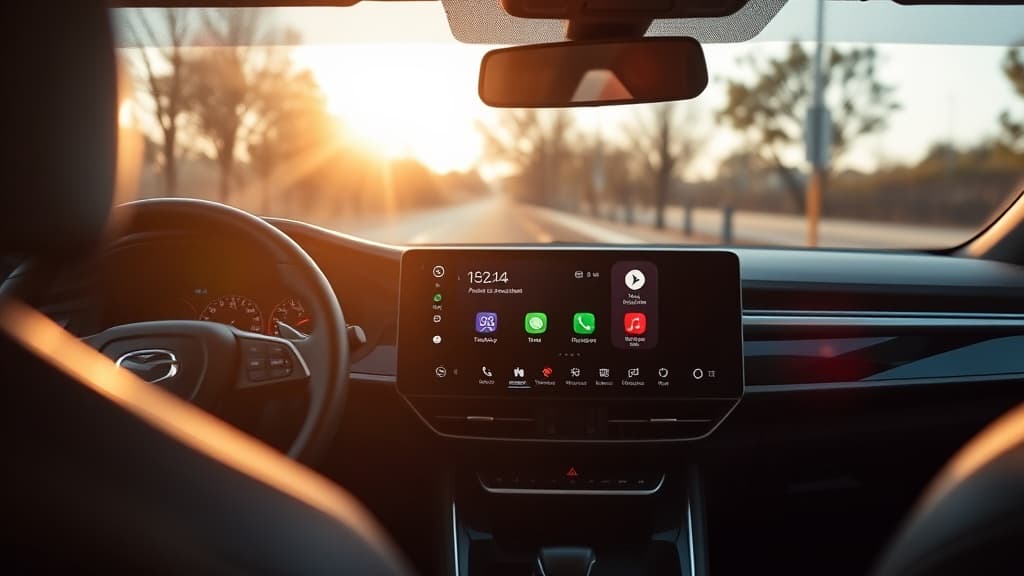
Once CarPlay is active on your vehicle's display, look for the ChatGPT icon on the CarPlay home screen. Tap it. The app will open in Apple's voice control template, showing a simplified interface with a microphone button and up to four action buttons.
Tap the microphone button or one of the action buttons to begin speaking. ChatGPT will listen, process your question, and respond with a spoken answer. The screen will display minimal visual feedback to keep distractions low.
Step 6: Sign In if Prompted
The first time you launch ChatGPT through CarPlay, the app may prompt you to confirm your account on your iPhone. Pick up your phone (while parked), complete any authentication steps, and then return to the CarPlay interface. Subsequent sessions should connect automatically.
Configuring Voice Commands
ChatGPT in CarPlay works through direct conversation rather than structured voice commands. You do not need to memorize specific phrases. Just speak naturally.
Starting a conversation. Tap the microphone button on the CarPlay screen, then ask your question. For example: "What are the top-rated Italian restaurants near me?" or "Explain how a turbocharger works."
Follow-up questions. ChatGPT maintains context within a session. After it answers your first question, tap the microphone again and ask a follow-up. It will understand the context from your previous exchange.
Switching topics. You can change subjects at any time. There is no need to say "new topic" or reset the conversation. Just ask your new question.
Ending a session. Navigate away from the ChatGPT app on CarPlay, or press the home button to return to the CarPlay home screen. Your conversation history is saved in the ChatGPT app on your phone if you want to review it later.
Using Siri alongside ChatGPT. You can still use Siri for vehicle controls, messages, and calls while ChatGPT is running. Press and hold the voice control button on your steering wheel to activate Siri, or say "Hey Siri" if you have that enabled. Siri and ChatGPT do not interfere with each other since they serve different functions.
In our testing, we found that ChatGPT handles ambient road noise reasonably well, though it occasionally struggles with highway wind noise at higher speeds. Speaking clearly and at a moderate volume gives the best results. If ChatGPT misunderstands you, simply tap the microphone button and repeat your question.
Best Use Cases While Driving
We spent two weeks commuting with ChatGPT on CarPlay to find where it genuinely adds value versus where it is more gimmick than utility.
Trip planning and navigation context. While ChatGPT cannot set navigation for you, it excels at providing context. Ask "What should I know about driving through the Shenandoah Valley in April?" or "What are the rest stop options between Philadelphia and Boston on I-95?" You get detailed, conversational answers that complement your navigation app.
Brainstorming and idea development. Commute time is dead time for many professionals. With ChatGPT in CarPlay, you can brainstorm meeting agendas, workshop email drafts, or think through project plans by talking them out. The AI serves as a responsive sounding board.
Learning and curiosity. Long drives are ideal for exploring topics you are curious about. Ask ChatGPT to explain quantum computing, walk you through the history of a city you are driving through, or summarize a book you have been meaning to read. It turns passive driving time into a learning opportunity.
Language practice. You can ask ChatGPT to help you practice a language. "Let's practice conversational Spanish. Ask me questions about my weekend and correct my responses." The voice-first format makes this feel natural.
Work preparation. On your morning commute, you can ask ChatGPT to summarize key points about a client you are about to meet, help you rehearse a presentation, or generate talking points for a difficult conversation.
Where it falls short. Anything that requires visual output is a poor fit. Do not ask for code, spreadsheet formulas, or detailed comparisons that need to be read. Also, avoid relying on it for real-time information like traffic, weather, or stock prices, as responses may not reflect the latest data.
Privacy and Safety Considerations
Using an AI assistant while driving raises legitimate privacy and safety questions. Here is what you need to know.
Data and Privacy
OpenAI's privacy policy applies to all ChatGPT interactions, including those through CarPlay. By default, your conversations may be used to improve OpenAI's models. If you want to opt out, open the ChatGPT app on your iPhone, go to Settings, then Data Controls, and disable "Improve the model for everyone." This prevents your conversations from being used in training.
Your voice audio is processed by OpenAI's servers, which means your questions and ChatGPT's responses travel over your cellular connection. If privacy is a concern, avoid asking questions that include sensitive personal information, financial details, or confidential work matters.
Apple does not receive or store your ChatGPT conversations. The CarPlay framework provides the interface, but the data flows directly between the ChatGPT app and OpenAI's servers.
Driving Safety
Apple's restrictions on CarPlay AI apps exist for good reason. The voice-only format, the prohibition on visual content in responses, and the simplified interface all serve to minimize distraction.
That said, any interaction with an in-car system carries some cognitive load. We recommend the following practices.
Do not start conversations in heavy traffic or complex driving situations. Save your ChatGPT interactions for highway cruising, light traffic, or times when you are stopped at a red light.
Keep questions concise. Long, complex questions require more mental effort to formulate and take longer to process. Short, direct questions get faster answers with less distraction.
Let ChatGPT finish speaking before responding. The temptation to interrupt with follow-ups can split your attention between the conversation and the road.
Pull over if you need to read something. If ChatGPT's response prompts you to check something on your phone, pull over first. The whole point of the voice-only interface is to keep your eyes forward.
Consider your passengers. If you have passengers, be aware that all ChatGPT conversations are audible. Avoid topics you would not want others to hear.
Troubleshooting Common Issues
ChatGPT Does Not Appear in CarPlay
First, confirm your iPhone is running iOS 26.4 or later. Go to Settings, General, About, and check the iOS Version. Second, make sure the ChatGPT app is updated to version 2.8 or later. Third, go to Settings, General, CarPlay, select your vehicle, and verify that ChatGPT is toggled on.
If ChatGPT still does not appear, try removing and re-adding your CarPlay connection. Go to Settings, General, CarPlay, select your vehicle, then tap Forget This Car. Reconnect your iPhone to the vehicle and check again.
Audio Is Not Working
If ChatGPT responds but you cannot hear the audio, check your vehicle's volume. CarPlay audio follows your car's media volume, not the ringer volume. Turn up the volume using your steering wheel controls or the volume knob.
If you hear other CarPlay audio but not ChatGPT, force-quit the ChatGPT app on your iPhone and relaunch it. Double-tap the home button or swipe up from the bottom of the screen, find ChatGPT, and swipe it away. Then reopen it and try again through CarPlay.
ChatGPT Is Slow to Respond
Response speed depends on your cellular connection. In areas with weak signal, responses will be delayed. Check your signal strength. If you are in a low-coverage area, responses may time out entirely. There is no offline mode for ChatGPT in CarPlay.
If you have a strong signal but responses are still slow, your ChatGPT account tier may be a factor. Free-tier users experience slower response times during peak hours. Upgrading to ChatGPT Plus provides priority access and faster responses.
Voice Recognition Is Poor
Background noise significantly impacts voice recognition quality. If ChatGPT consistently misunderstands you, try closing your windows, turning down the fan speed on your climate control, and lowering any background music. Speaking slightly louder and more clearly than your normal conversational voice also helps.
If the problem persists, check your iPhone's microphone. CarPlay uses your iPhone's microphone for wired connections and your car's built-in microphone for wireless connections. If using wired CarPlay, make sure nothing is blocking your iPhone's microphone. If using wireless CarPlay, check that your car's microphone is clean and unobstructed.
CarPlay Disconnects Frequently
For wired connections, try a different USB cable. Frayed or damaged cables cause intermittent disconnections. Use an Apple-certified cable for best results. Also try a different USB port if your vehicle has multiple options. Not all USB ports support CarPlay.
For wireless connections, make sure your iPhone's Bluetooth and Wi-Fi are enabled. Go to Settings, Bluetooth, and verify your car is listed as connected. If the connection drops frequently, forget the Bluetooth pairing and re-establish it from scratch.
FAQ
Does ChatGPT in CarPlay cost extra? No. If you have an iPhone with iOS 26.4 and the ChatGPT app, CarPlay access is included at no additional charge. The free ChatGPT account works, though Plus subscribers get faster responses.
Can I use ChatGPT and Apple Maps at the same time? Yes. CarPlay handles multitasking. You can have navigation running through Apple Maps or Google Maps while switching to ChatGPT for conversations. The navigation audio will mix with or pause for ChatGPT's responses depending on your vehicle's audio system.
Does it work with wireless CarPlay? Yes. ChatGPT works with both wired and wireless CarPlay connections. The experience is identical.
Can I use ChatGPT with CarPlay in rental cars? Yes, as long as the rental car supports CarPlay. Connect your iPhone via USB or wireless pairing, and ChatGPT will be available just as it would be in your own vehicle. Remember to unpair your phone from the rental car's Bluetooth when you return it.
What about Android Auto? As of April 2026, ChatGPT's in-car integration is available through Apple CarPlay. OpenAI has not announced an Android Auto equivalent. Android users can still use ChatGPT through their phone's speaker while driving, though this is not integrated with the car's display.
Can I use voice to send my ChatGPT conversation to someone? Not directly through CarPlay. ChatGPT in CarPlay is voice-only and cannot send messages, emails, or share content. However, your conversation is saved in the ChatGPT app on your phone. After you park, you can open the app and share or copy any part of the conversation.
Does it work with CarPlay on motorcycles or aftermarket head units? If the motorcycle or aftermarket head unit supports Apple CarPlay and your iPhone is running iOS 26.4 or later, ChatGPT should work. We have not tested this on motorcycles, but aftermarket CarPlay head units from Alpine, Pioneer, and Sony worked in our testing.
Will ChatGPT drain my battery quickly? ChatGPT uses a moderate amount of processing power and data. On wired CarPlay, your phone charges while connected, so battery drain is not an issue. On wireless CarPlay, battery consumption is higher because Bluetooth and Wi-Fi are active simultaneously. For long drives on wireless CarPlay, we recommend using a phone mount with a charger to keep your battery topped up.
Was this article helpful?
Join the conversation — sign in to leave a comment and engage with other readers.
Loading comments...
Related Posts
software
How to Choose the Right AI Coding Assistant in 2026
Apr 8, 2026software
How to Use AI Agents to Automate Your Workflow in 2026
Apr 4, 2026software
ChatGPT vs Claude vs Gemini in 2026: Which AI Assistant Is Best?
Apr 4, 2026software
Best AI Code Assistants 2026: 5 Tools Tested for Real-World Development
Apr 8, 2026Enjoyed this article?
Get the best tech reviews, deals, and deep dives delivered to your inbox every week.